How do you use GradePush?
Last updated: July 14, 2026
Once installation on a specific sub-account or on the root account has been completed, the application can be used by following these steps:
Go to one of the courses in your account.
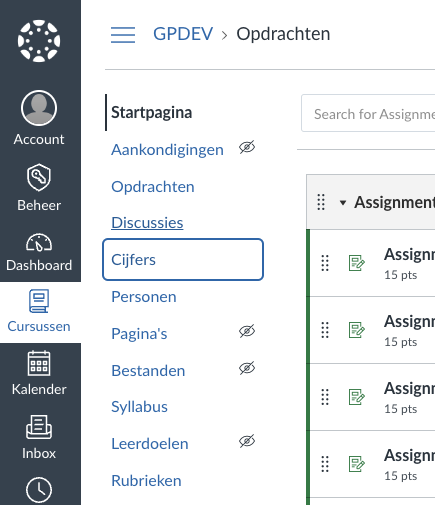
Click on “Grades” in the course navigation menu.
Click on ‘Actions’ at the top of the screen to expand the menu.
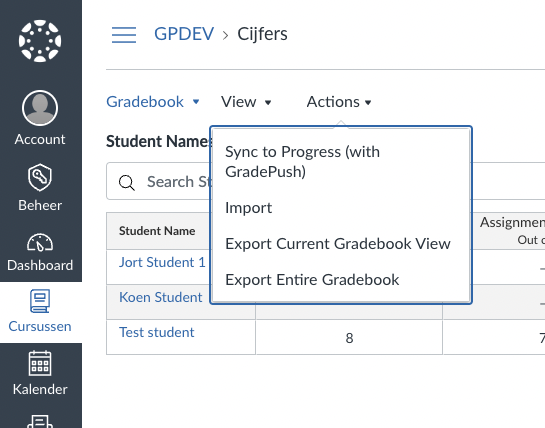
Next, click on “Sync grades (with GradePush)”. As soon as you click on this, a window will open automatically.
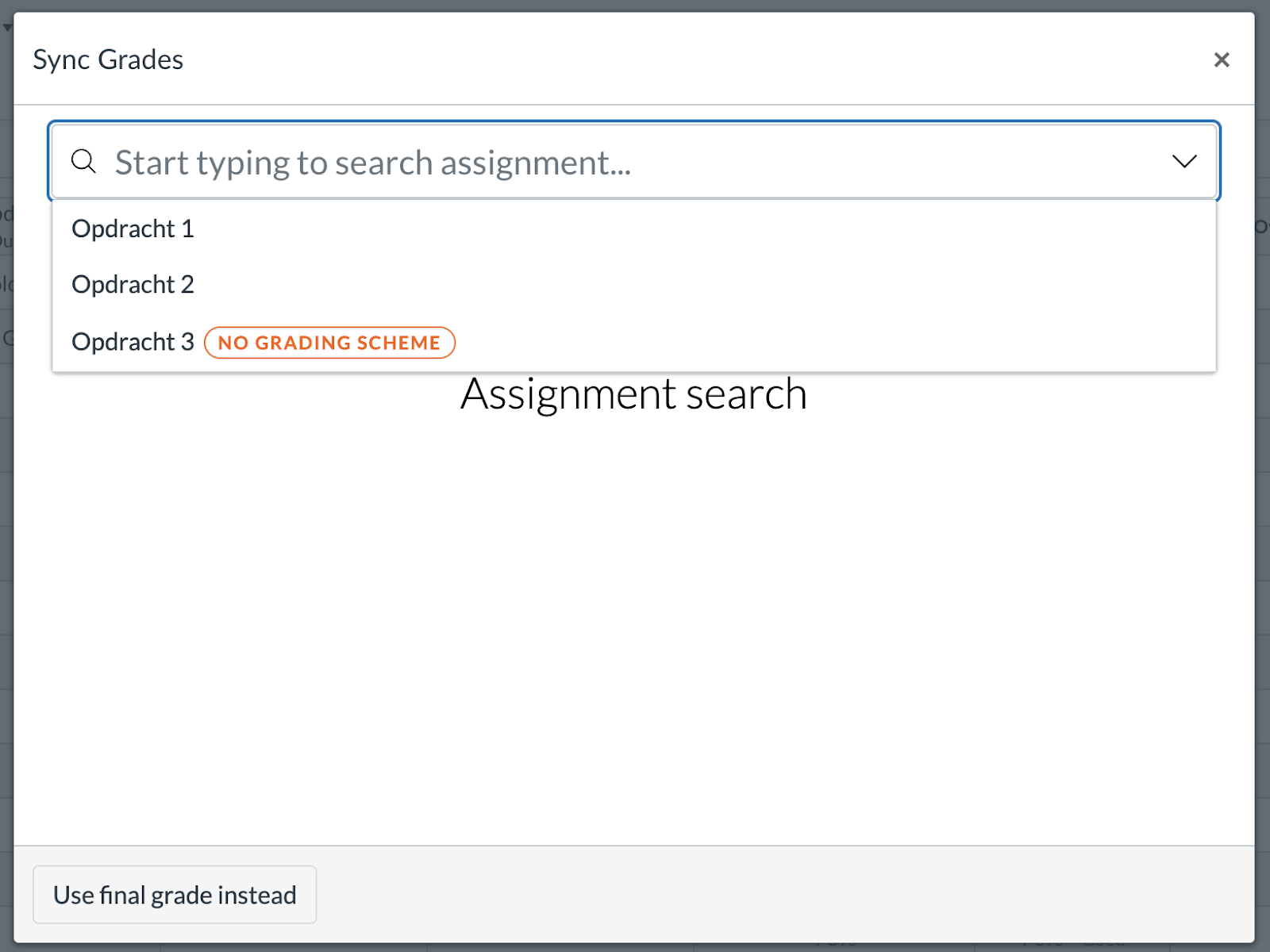
From the list, select the correct assignment that corresponds to the marks (and to the correct marking scheme). It does not matter if a marking scheme has a different name but the same content.
It is also possible to click on ‘Use final grade’ (ENG: ‘Use final grade instead’) in the bottom left-hand corner; this allows you to submit the final mark for a module to the SIS. In this case, the marking scheme corresponding to the module is automatically selected and checked.
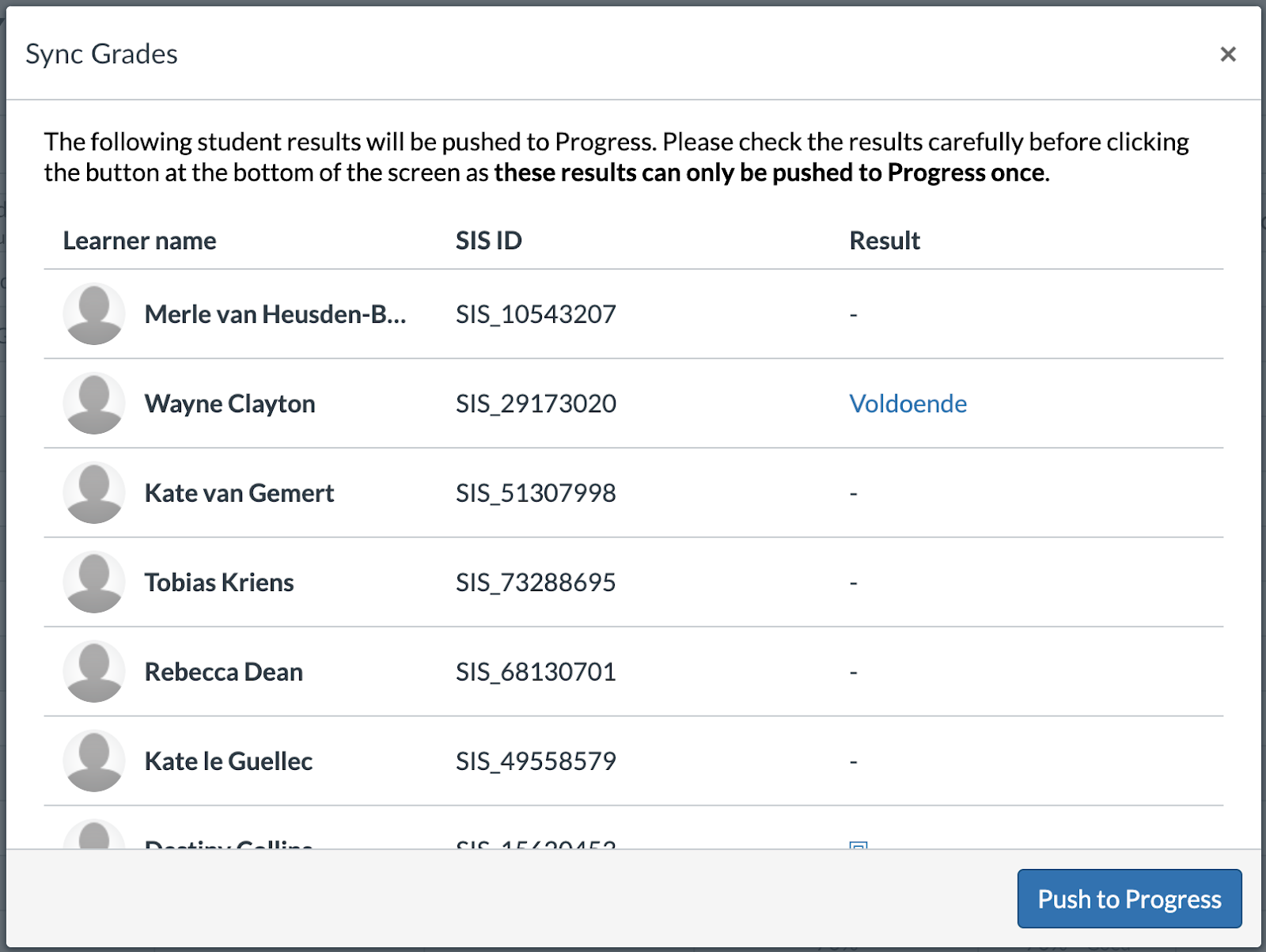
Once you have selected the correct course (or ‘Use final mark’), you will see a list of the various students (Name, SIS ID and Result). If everything is correct, you can now click on ‘Sync grades’ to automatically process the results in the SIS.
Wat is GradePush?
GradePush is an LTI app that allows grades to be sent from Canvas to the SIS. When grades are sent via GradePush, selected columns from the grades overview in Canvas are sent to the SIS via third-party middleware.
The app also validates the assessment schemes for a specific course based on the assessment scheme in the SIS, so that any overlaps can be identified.
What is a grading scheme (mark)?
An assessment scale refers to the way in which a specific subject or assignment measures a student’s mark. Examples include a scale from 1 to 10, where the higher the mark, the better. Another example of an assessment scale is the use of letters in place of numbers. Examples include O, V, G, U (Unsatisfactory, Satisfactory, Good, Excellent). These letters represent a mark that can be used in the SIS.
What information does GradePush send?
When marks are sent, the following fields are transmitted to the SIS: For each unique Course ID, several underlying variables are sent (List of students):
The student’s SIS ID
The grade
The date and time on which the assignment was submitted
To check the assessment schemes, the following data from the Canvas assessment scheme is forwarded:
Name of the assessment scheme
The value of the assessment framework (see explanation above)
The title of the assessment form
Context type (course or account)
Context ID
What role is required to use GradePush?
At present, only users with an administrator (admin) role are authorised to use GradePush’s features. Further roles can be added so that they too can use GradePush. These can be any roles, at both account and course level. Please contact Drieam for this.